Installing a GH-Python-Remote and Rhino.Python editor integrated environment:
One of the most persistent friction points in computational design work within Rhinoceros is the inability to use the full scientific Python stack — NumPy, SciPy, and their dependents — directly inside the Rhino Python Editor. The root cause is an architectural incompatibility: Rhino's embedded Python interpreter is built on IronPython, a .NET implementation of the Python language, while modern builds of NumPy and SciPy target CPython (the standard C-based Python runtime) and rely on compiled C extensions that IronPython cannot execute. Enthought, the scientific computing company, attempted to address this by porting NumPy and SciPy to the IronPython framework, but the effort proved extraordinarily difficult and was ultimately abandoned at an early stage; the resulting .eggs packages cover only a small subset of functionality, are no longer maintained, and do not constitute a viable substitute for the full library. For practitioners working on data-intensive parametric design projects — structural form-finding, geometric optimization, environmental simulation, or computational analysis of spatial data — the absence of the scientific Python stack inside Rhino represents a significant constraint.
GHPython Remote, developed by Pierre Cuvilliers at MIT's Digital Structures research group, provides an elegant architectural solution to this problem. Rather than attempting to run scientific Python libraries inside IronPython, GHPython Remote establishes a socket-based bridge between the GHPython component inside Grasshopper and an external, full-featured CPython interpreter — such as a conda virtual environment managed through Anaconda. Python code executed through this bridge has simultaneous access to both the external CPython environment (including the full NumPy, SciPy, and any other pip- or conda-installed library) and to RhinoCommon geometry types and Grasshopper data structures. The bridge is designed for minimal latency and does not degrade in performance with increasing object size, making it suitable for iterative parametric workflows where geometry is passed back and forth between Grasshopper and the Python environment at interactive speeds. The following guide covers the complete installation and configuration process from scratch.
From the developers:
GHPython Remote is a special component that lets you use regular Python code directly in the GHPython component, like importing Numpy, Scipy, matlplotib et al. It is developed by Pierre Cuvilliers at MIT.
GHPython Remote works by connecting GHPython to an external instance of Python that runs all the usual programs. This augments the GHPython component to get the best of both worlds: your code will be able to call both RhinoCommon
functions and regular Python packages from the same script. The dependencies are as limited as possible, and the installation is just to two command lines. The connection between GHPython and the remote Python is as fast as possible,
and does not slow down when the size of your objects increases.
The component is still very flexible. For example, it will also let you connect to Python servers running on external machines, bringing the power of the cloud to your Grasshopper. Another example: it also works the other way,
controlling Rhino and GHPython from an external Python program. And it's all open source!
Overview:
- Install Grasshopper for Rhino 5
- Install GHPython for Grasshopper
- Update the IronPython engine used by Grasshopper to the release 2.7.5
- Install GHPython Remote in Grasshopper
- Setup an Anaconda virtual environment running Python 2.7.5, Numpy, Scipy, and all other packages you would like to use in Rhinoceros
- Install GHPython Remote in the Anaconda environment.
- Run the GHPython Remote sample
Detailed Steps:
- Install Grasshopper for Rhinoceros 5.0 (Rhino 6.0 comes with Grasshopper, skip to GHPython Remote Installation).
- Download and install GHPython. The install can be completed by dragging and dropping the GHA file onto the Grasshopper Canvas (Rhino 6.0 comes with GHPython, skip to GHPython Remote Installation).
- Download GHPython Remote
- Install Anaconda 3 for Windows running Python 2.7 (Make sure to perform a user installation, "Just for me", instead of system-wide one to prevent access issues in the ProgramData folder. Do not worry about checking the Options about setting the PATH, just leave the box unchecked in the installation prompt)
- Setup a new Anaconda Environment:
- Once installed, start up the Anaconda Prompt App. Run as Administrator to avoid PATH inconsistencies
- Setup a new rhino-remote environment by using the command:
conda create -n rhino-remote python=2.7 - Activate the new environment:
conda activate rhino-remote - Install Numpy, Scipy. Use this opportunity to install any other Python libraries in the rhino-remote environment, either via conda or pip:
conda install numpy
conda install scipy
- For this exercise, I also installed COMPAS, an open-source, Python-based computational framework for collaboration and research in architecture, engineering and digital fabrication.
It is developed by the Block Research Group of ETH Zurich, with the support of the National Centre for Competence in Research
on Digital Fabrication. Install it with the following:
conda install --channel "conda-forge" COMPASor
pip install COMPAS
You can also install it by incorporating the conda-forge channel in your list of channels in Anaconda:
conda config --add channels conda-forge
conda install COMPAS
While conda-forge is a very well maintained package repository, I avoided using the latter approach because of inefficiencies in the default Environment Solver, which is parsing the list of available packages very slowly and is causing the Anaconda Prompt to hang on Solving Environment indefinitely. - Install gh-python-remote in Anaconda - The first line installs gh-python-remote in the current Python interpreter. The second tries to find your Rhinoceros IronPython installation, and install gh-python-remote there. The extra
options are necessary to be able to get the pre-release version of rpyc, which is the only one compatible with GHPython remote at the moment:
pip install gh-python-remote --upgrade --process-dependency-links
            --no-binary=:all:
python -m ghpythonremote._configure_ironpython_installation(this will install in the default IronPython path that has been set by Rhino. It can be found at
C:\Users\%User%\AppData\Roaming\McNeel\Rhinoceros\6.0\Plug-ins\IronPython(814d908a-e25c-493d-97e9-ee3861957f49)\settings\lib) for Rhinoceros 6.0. Adding a 5 at the end of the python command will perform the installation for Rhinoceros 5.0. - Record the location of the rhinoremote environment by using the conda command:
conda env list
The command should return something like “C:\Users\%User%\Anaconda3\envs\rhino-remote” - Start Anaconda Prompt.
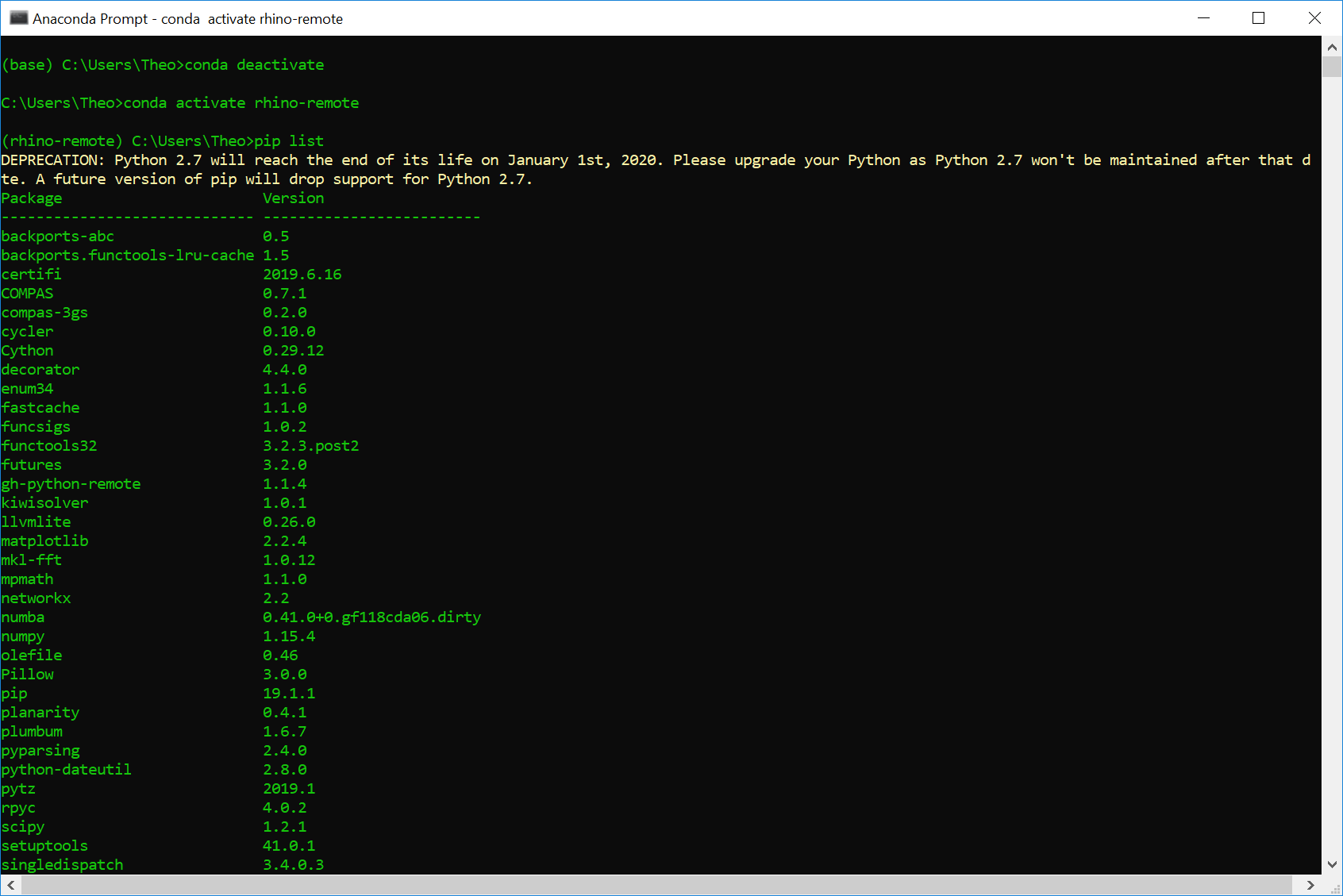
- Activate the rhino-remote environment:
conda deactivate
conda activate rhino-remote
- Start Rhino and Grasshopper. Open the sample file mesh_smoothing.3dm and the GH_python_remote.ghx sample canvas (the original .ghx download is no longer available on this site — the screenshots below show the full component setup to rebuild it: a Python location panel, ghpythonremote-pythonservice, and the import statements).
- Double-click on the Python location panel and input the location of your newly created rhino-remote environment. It should look very similar to what is shown here:

- Enter the modules you would like to import from the your Anaconda environment in the modules panel (break each entry with a return). For the purposes of this exercise, I imported compas through the grasshopper module, but you can
simply import it on the Python modules editor with
import compas. The only problematic modules in questions are numpy and scipy, among a few others, which cannot be imported directly. In those cases, you can import them through the GPython Remote module and use the scriptcontext syntax to port them into your script:
- Switch the boolean toggle to True. A new terminal window will open, showing the porting procedure. Feel free to minimize it (but do not close it, as this is the background process that maintains your modules in the
grasshopper environment)

- Navigate to the Python module:

- Double-click on the module to open the Python editor:

- Click OK or Test on the Python Editor to run the script. You should see something like this:

- You can bake the outgoing mesh to get a result that you can work with in Rhino.

Sources: Pierre Cuvilliers, Block Research Group, ETH Zurich, National Centre for Competence in Research on Digital Fabrication, McNeel Rhinoceros.